
Home › Spectrum analyzer (RTA)
Free tool for sound engineers
Free online spectrum analyzer (RTA)
See in real time which frequencies your church's audio has, using your phone's microphone, your computer or your interface input. With a feedback detector and nothing to install.
Press “Start” and allow microphone access when the browser asks. The audio is analyzed on your device: it is not recorded or sent anywhere.
Just want to see how it works? Press “Demo”.
Choose the mode and press “Start”. With a 2-input interface: channel 1 = reference (your console output) and channel 2 = measurement microphone.
Without an interface, use the “Page pink noise + microphone” mode. Audio is analyzed on your device: it is never recorded or sent anywhere. Just want to see how it looks? Press “Demo”.
Pink noise on: it sounds even across all bands and shows how the system and the room respond. The volume starts at 60%: lower it before turning it on if your system is very loud. If the microphone is close to the speakers it can cause feedback.
How to use the analyzer
- Press “Start microphone” and allow access. On iPhone and iPad you have to tap the button for the browser to allow the microphone.
- Place the microphone where your audience listens, not next to a speaker, and let the “Medium” averaging settle the reading for a few seconds.
- Look at the third-octave bars to decide where to cut or boost with the equalizer, and turn on “Peak hold” to see the maximum each band reached.
- Freeze the image to study it and use “Photo” to save it or share it with your team.
How to read the spectrum
| Range | What you hear | What usually happens |
|---|---|---|
| 20 – 60 Hz | Sub bass | Rumble of the kick and bass. Too much energy here muddies the whole mix. |
| 60 – 250 Hz | Bass and body | Kick punch, bass, base of male voices. Excess = a “muddy” mix. |
| 250 – 500 Hz | Low mids | Warmth, but also the muddiest range in a room with echo. |
| 500 Hz – 2 kHz | Mids | Body of voices and instruments. Too much sounds nasal or “telephone-like”. |
| 2 – 6 kHz | Presence and intelligibility | This is where lyrics and the pastor’s voice are understood. It is also where microphones feed back the most. |
| 6 – 20 kHz | Brightness and air | Cymbals, sibilance and air. Too much brightness tires the ear. |
If you see narrow peaks that keep appearing at the same point, it is usually room resonance or feedback. Learn how to fix it in How to avoid feedback in church (Spanish).
Transfer function (reference + measurement)
Besides the spectrum, the analyzer can compare two channels: a reference (what comes out of your console or processor) and a measurement (what a microphone picks up in the room). The difference between them is what your system and your room do: the frequency response (magnitude), the timing (phase) and how reliable each point is (coherence).
- Connect an audio interface with 2 inputs to your computer and open this page in Chrome, Edge or Firefox. Channel 1: the console or processor output (reference). Channel 2: your measurement microphone.
- Open the “Transfer function” tab, choose your interface and press “Start”. Play pink noise through your system (“Pink noise” button or the G key), or use music or voice as the signal.
- Press “Sync”: the page measures the delay between the reference and the microphone and compensates it, so the phase shows the system and not the distance to the speaker.
- Read the three graphs. Magnitude: where there is too much or too little level. Phase: how speakers and subwoofers add up. Coherence: 1 is reliable; if it is low there is noise, reverberation or too little signal, and you should not decide there. Save a capture before equalizing and compare afterwards.
No 2-input interface? Use the “Page pink noise + microphone” mode: the device plays the noise on its audio output (to the console or the speaker) and picks up the microphone; the page knows the signal it played and measures the whole path output → system → room → microphone with a single input. It also works on a phone.
Price and trial: the transfer function is the only paid part of the analyzer. You get a 5-minute trial of real measurement (the demo is free and does not use time); after that it locks in your browser and is unlocked with a one-time payment of USD 50 through PayPal, with permanent access on up to 3 devices. You receive a code to reactivate it if you change computers. The RTA, the sound test and the other resources stay free.
Limits, stated plainly: it is a support tool, not a replacement for Smaart or lab equipment. The browser estimates the delay and does not guarantee a fixed latency; that is why both channels must come in through the same interface. Levels are relative unless you load your microphone calibration, and ordinary phones deliver a single channel.
Frequently asked questions
Is it free? Do I need to install anything?
It is free and nothing needs to be installed: it works directly in your browser (up-to-date Chrome, Edge, Safari and Firefox), on a computer, tablet or phone.
Is my audio recorded or sent?
No. The analysis happens on your own device with the Web Audio API. Audio is not recorded, not uploaded to the internet and does not pass through any VCA Drums server.
Does it measure real decibels (SPL)?
No. Levels are relative (dBFS) and uncalibrated, so they are good for seeing the shape of the spectrum and comparing before and after, not for measuring real volume. For SPL use a calibrated sound level meter.
Why does a phone microphone show so little bass?
Phone and laptop microphones filter out bass and cut extreme treble. For a more faithful reading use a measurement microphone, or the input of your interface or console (you can choose it in the input selector).
How does it detect feedback?
It looks for very narrow peaks that stand out from the rest of the spectrum and that persist or keep growing over time, which is how feedback behaves. It is a help, not a perfect diagnosis: a long organ or bass note can also trigger it.
Can I use my console or audio interface?
Yes. Connect the interface to the device, press Start microphone and choose your interface in the input selector. That way you can see the spectrum of a channel or of the mix.
Want to master your church mix?
Learn EQ, gain, monitoring and feedback control with our online courses (in Spanish), or let an engineer mix your service remotely.
Related guides (Spanish)
Beta · connected tools
More free tools
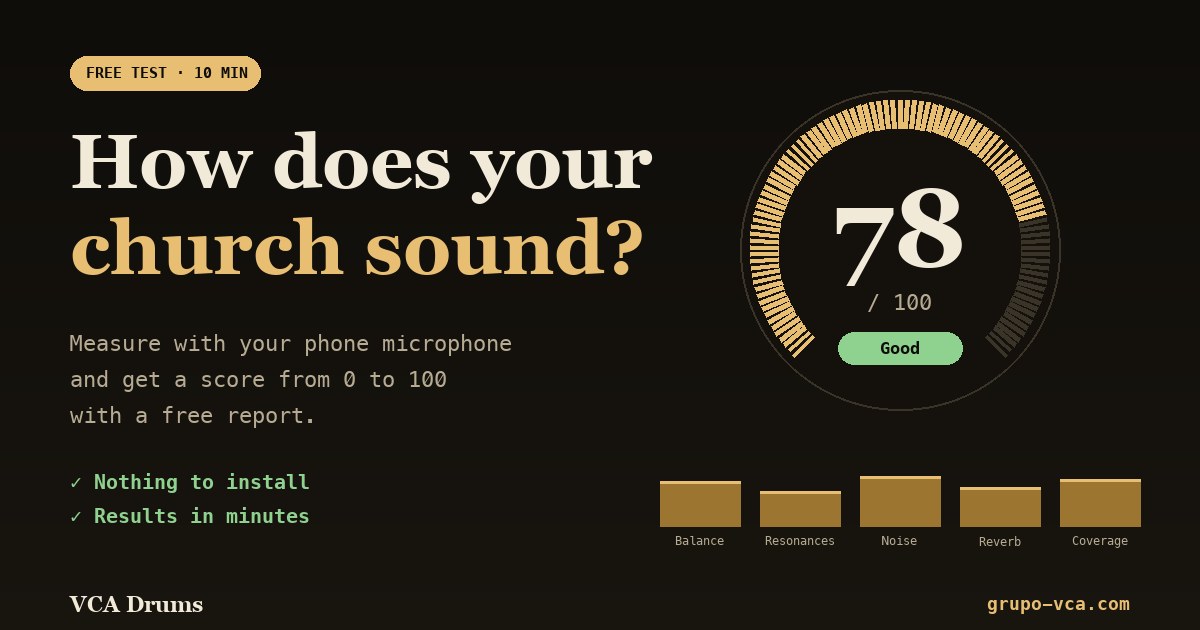 Church sound testA score from 0 to 100 and a free report on how your room sounds.Open →
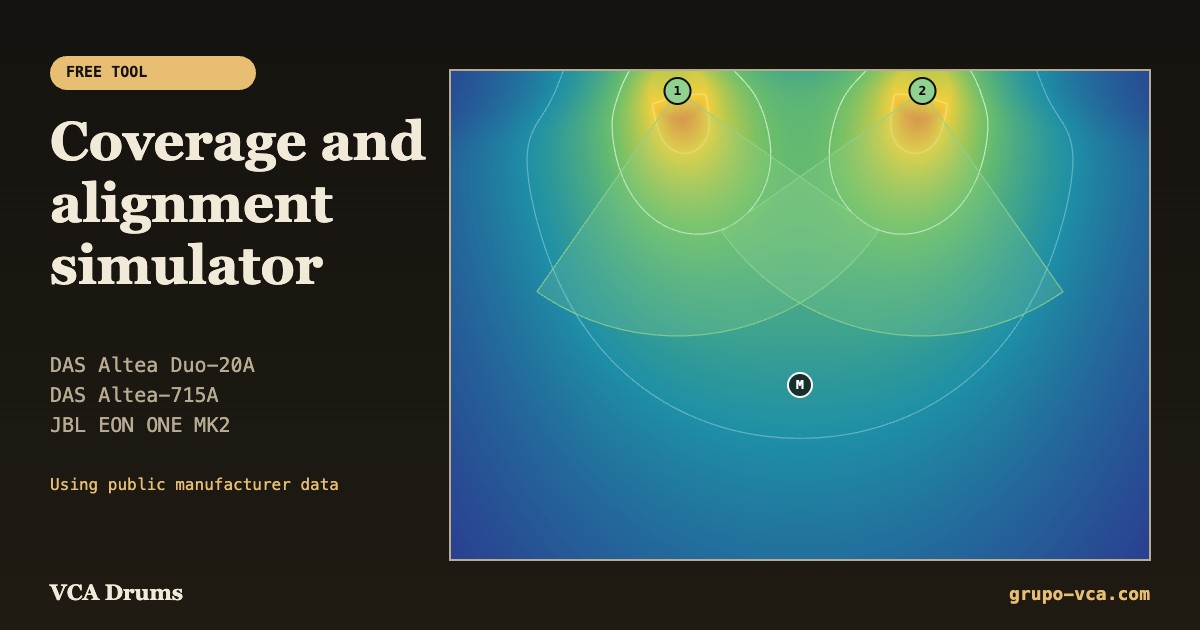 Coverage simulatorPlan where to place and how to aim your DAS and JBL speakers.Open →
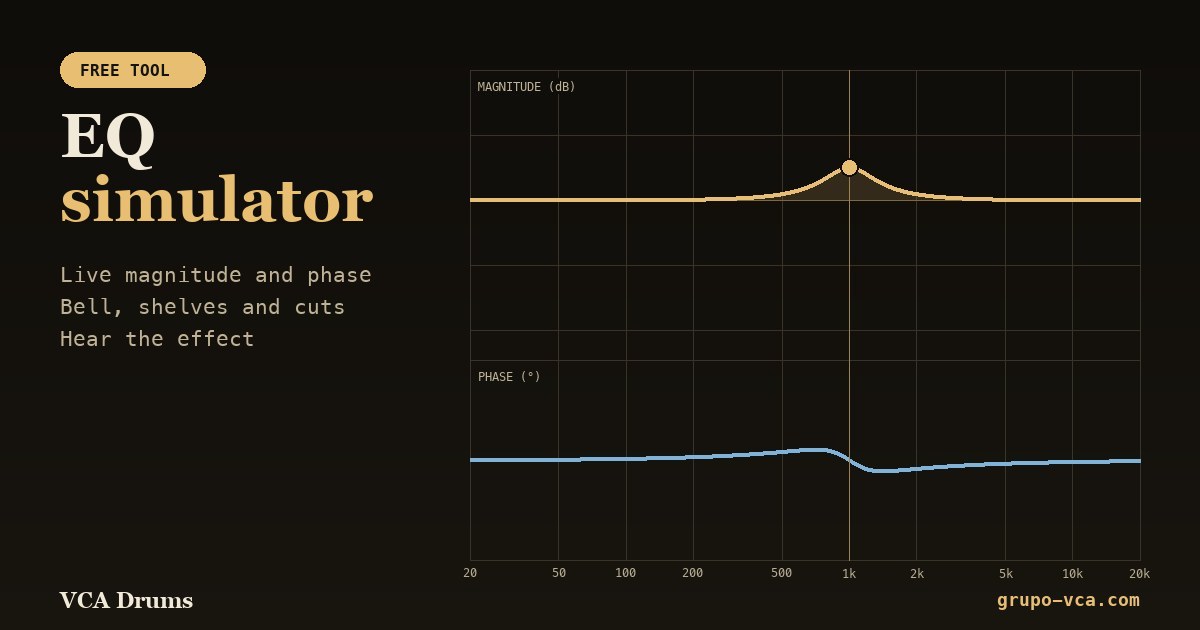 EQ simulatorSee the magnitude and phase of each filter and hear the effect.Open →
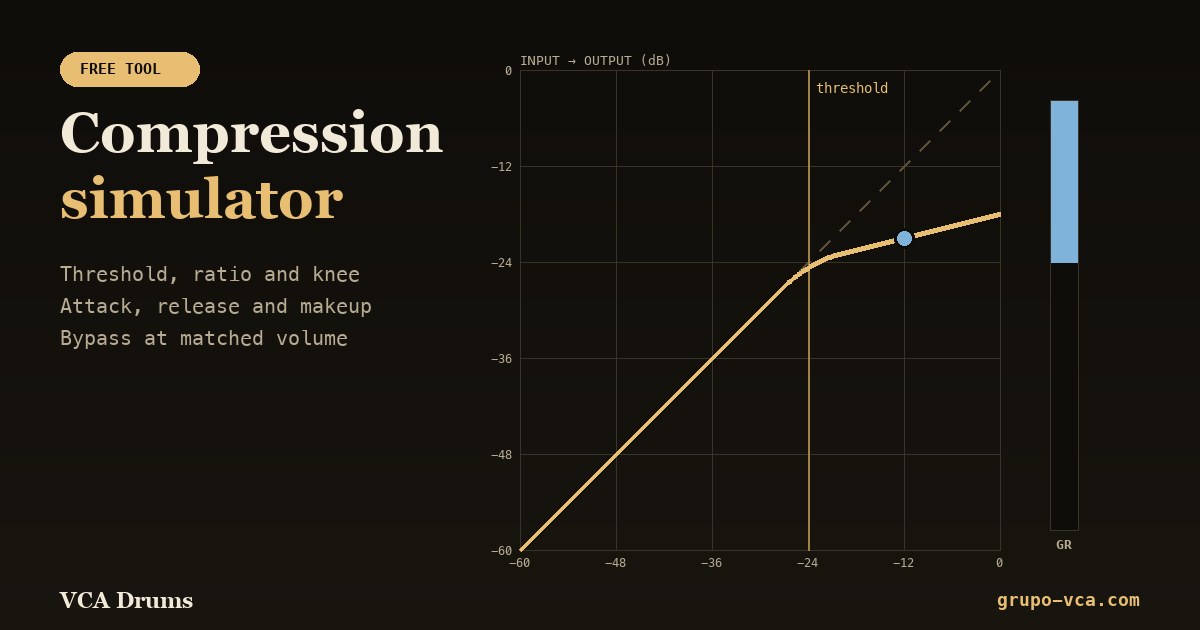 Compression simulatorThreshold, ratio, attack and release with live gain reduction.Open →